

Followers
How to hide followers on TikTok (and what stays visible)
Can you hide followers on TikTok? Yes, with a private account. Here is how to hide followers on TikTok, hide your following list, and what stays visible.
TikTok · Account help
How to delete comments on TikTok in three taps, clear up to 100 at once, find your old comments, and use filters so the bad ones never show up.

Here is how to delete comments on TikTok. Tap the Comments button on the side of the video, press and hold the comment, and tap Delete. That works for any comment you posted and for any comment on your own video (TikTok Help).
On your own videos you can also clear up to 100 comments in one round. You can filter comments so the worst ones never show. And you can turn comments off for one video or limit them on all of them.
This guide covers each of those with TikTok’s own menu names. It also answers the questions people ask next. Can people see deleted comments? Does the other person get told? Does deleting comments hurt your reach?
TikTok gives you control over two things: what you wrote, and what sits under your own videos. Everything else you can only report.
| The comment | Can you delete it? | What to do |
|---|---|---|
| Your comment on any video | Yes | Press and hold it, tap Delete |
| Anyone’s comment on your video | Yes | Press and hold it, tap Delete |
| Lots of comments on your video | Yes, up to 100 in one round | Manage multiple comments |
| A stranger’s comment on someone else’s video | No | Press and hold it, tap Report |
| Your comment on a post that is now private | No | Nothing while the post is private |
| Your comment on a Story that expired | No | Nothing. The Story is gone |
| A comment in a LIVE chat | No delete button | Mute or block the viewer |
The rows about private posts and expired Stories come from TikTok’s Manage comments page. The LIVE row comes from its page on LIVE comments. We cover both further down.
These are the steps from the TikTok Help Center page called Comments.
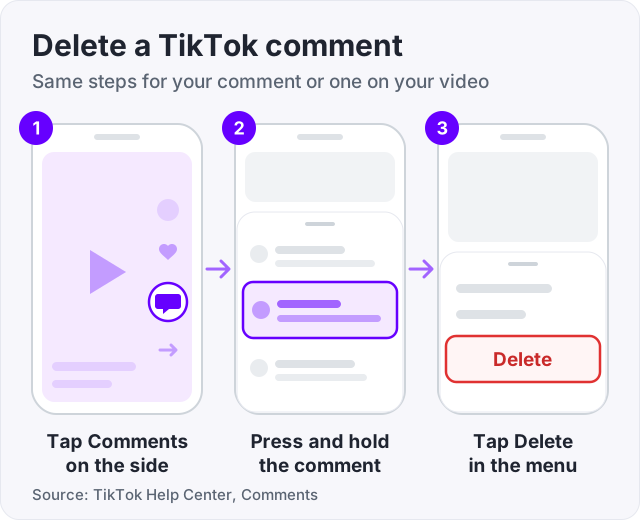
The comment is gone for everyone at once. The most common mistake is a quick tap. A tap does not open the menu. Keep your finger on the comment until the menu shows.
Tip: if the comment breaks TikTok’s rules, report it before you delete it. Press and hold the comment, tap Report, pick a reason, and tap Submit (TikTok Help, Report a comment). Once a comment is deleted, there is nothing left to report.
Deleting a comment you posted on someone else’s video works the same way. Open the video, tap the Comments button, press and hold your comment, and tap Delete (TikTok Help).
The hard part is finding an old comment. TikTok keeps a list for that, called Comment history.
TikTok notes two limits. Video reply comments do not show in Comment history. And you cannot delete your comment if the post has been made private or if it was a Story that has expired (TikTok Help, Manage comments).
There is no “delete all my comments” button. You clear old comments one at a time from this list. It is slow, but it is the only way TikTok offers.
No. TikTok Help gives one set of steps for “the TikTok app” and does not split them by phone. Press and hold works the same on an iPhone and on an Android phone. The menu names in this guide are the same on both.
TikTok Help only describes the app for deleting comments. If you are on a computer and cannot find a delete option, pick up your phone and use the steps above.
TikTok added bulk tools in May 2021. Its newsroom post said creators could now “delete multiple comments at once” and select up to 100 comments or accounts (TikTok Newsroom). The tool is still there, and the Help Center lists the steps.
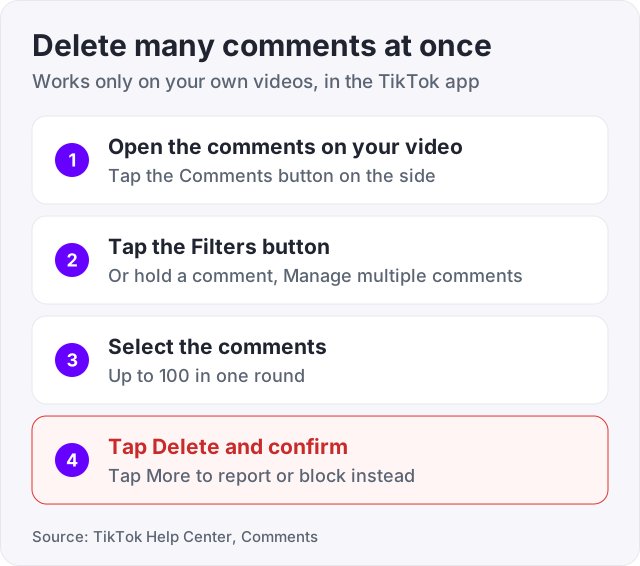
If a video has more than 100 bad comments, run the tool again. Each round takes up to 100.
The same screen does two more jobs. After you select comments, tap More. From there you can tap Report comments to send the whole batch to TikTok, up to 100 at once (TikTok Help, Report a comment). Or you can tap Block accounts to block every person behind the selected comments (TikTok Help, Blocking someone).
Watch out: this tool only works on your own videos. It cannot bulk delete comments you left on other people’s videos. Any app or site that offers to do that needs your login. Do not give it.
Deleting is cleanup. Filters stop the mess before anyone sees it. A filtered comment is hidden from the public until you approve it. All four filters live in one place (TikTok Help, Manage comments).
| Filter | What it hides until you approve |
|---|---|
| Filter all comments | Every comment on your videos. TikTok says this one is not available to everyone |
| Filter unwanted comments | Recent comments that may be offensive or spam |
| Filter keywords in comments | Any comment that has a word you added with Add keywords |
| Creator Care Mode | Rude or offensive comments, profanity, and comments like ones you reported, deleted or disliked before |
To check what got caught, go back to the same Comments screen and tap Review filtered comments. Under each one you tap Approve or Delete.
The keyword filter is the best fix for a repeat problem. If the same insult or the same scam link keeps coming, add that word once. You will not need to delete it again.
Sometimes you do not want to manage comments at all. TikTok gives you three levels (TikTok Help, Manage comments).
For one video you already posted:
For a new video: on the Post screen, tap More options and turn off Allow comments before you post.
For every video: go to Settings and privacy, Privacy, Comments, then Allow comments from. A public account can pick Everyone or Friends. A private account can pick Followers or Friends. Friends means followers you follow back. If you want your account locked down further, our guide on how to hide followers on TikTok walks through the other privacy settings.
Not sure which tool fits your problem? Start with the smallest one.
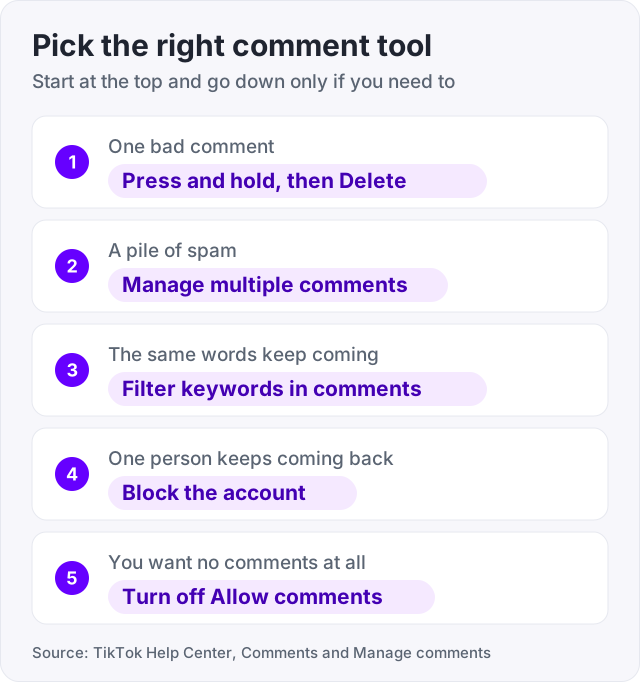
No. A deleted comment is removed from the post, and nobody can see it after that.
People also ask if the other person gets told. TikTok Help describes no alert for a deleted comment. The person would only notice by going back to the video and finding their comment missing. A block is quiet too. TikTok Help says people you block “won’t be notified”.
Two more things to know before you tap Delete.
A LIVE chat works differently. TikTok’s page on LIVE comments lists no delete button. Instead, the creator or a moderator taps the comment in the chat and picks one of these.
Before or during a LIVE, tap Settings, then Comment settings. There you can turn Allow comments off, set Mute rules, or add Blocked keywords. TikTok allows up to 500 blocked keywords of up to 30 characters each. With a mute rule, a viewer who types your chosen word is muted, and their earlier comments are removed from the chat (TikTok Help, Comments on TikTok LIVE).
Moderators can only do this if the creator gave them comment permissions. If you cannot go LIVE yet, see how many followers you need to go live on TikTok.
TikTok does not publish a rule about deleted comments. Here is what it does say. Its page on how it recommends content lists “content you like, share, comment on” among the user interactions that shape the For You feed. So comments are one of the signals. Likes, shares and watch time are others.
That gives a simple rule of thumb. Delete spam, scams, hate and anything that breaks the rules. Nobody comes to a video to read those. Keep fair criticism and honest questions, and answer them. A reply is one more comment, and it shows new viewers that someone is home. Our guide on how to go viral on TikTok explains how those signals add up.
Deleting a comment does not touch your likes, views or followers. Those counts stay where they were.
We sell TikTok likes from $2.95 for 100, so here is the honest part. Bought likes raise the like count on a video. They do not write comments. They do not remove hate comments or bury them. And they do not make a rough comment section look friendly. If the comments are the problem, the fix is the tools in this guide, and they are free.
Yes, in two cases. You can delete any comment you posted, on any video. You can also delete any comment that someone left on your own video. In both cases you tap the Comments button, press and hold the comment, and tap Delete (TikTok Help). You cannot delete a stranger's comment on someone else's video. For that, press and hold it and tap Report.
TikTok has no button that wipes every comment you ever posted. Open Settings and privacy, tap Activity center, then Comment history. Tap a comment to open the post, press and hold the comment, and tap Delete. You repeat that for each one. The bulk tool that selects up to 100 comments only works on your own videos, not on comments you left elsewhere (TikTok Help).
Open the comments on your video. Tap the Filters button at the top, or press and hold any comment and tap Manage multiple comments. Select the comments you want gone, up to 100, then tap Delete and confirm. If the video has more than 100 bad comments, run the tool again. The same screen lets you report comments or block accounts in bulk (TikTok Help).
No. Once you tap Delete, the comment is gone from the post for everyone. TikTok Help describes no alert that tells a person their comment was deleted. They would only find out by going back to the video and looking for it. TikTok Help also lists no way to restore a deleted comment, so treat Delete as final.
TikTok Help says a block stops that person from viewing your videos or commenting, liking, following or messaging you. It does not say that a block wipes the comments they already left. The safe order is to delete first and block second. Manage multiple comments lets you do both from one screen. Select the comments, tap Delete, or tap More and then Block accounts.
For one video, open it, tap the More options button, tap Privacy settings, and turn off Allow comments. For a new video, tap More options on the Post screen and turn off Allow comments there. To limit every video at once, go to Settings and privacy, Privacy, Comments, and set Allow comments from to Friends (TikTok Help).
There are three usual reasons. The comment is not yours and the video is not yours, so you can only report it. You tapped the comment instead of pressing and holding it. Or the post is now private or was a Story that expired. TikTok Help says you cannot delete your comment in those last two cases.
The facts in this guide come from the places below. We check them again each time the guide is updated.
The services and free tools this guide talks about, with the prices you actually pay.
More TikTok guides from the same team.
Followers
Can you hide followers on TikTok? Yes, with a private account. Here is how to hide followers on TikTok, hide your following list, and what stays visible.

Algorithm & timing
How to go viral on TikTok, per TikTok itself: how the For You feed tests each video, what you control in the first 3 seconds, and what viral really means.

Followers
How many followers do you need to go live on TikTok? TikTok publishes an age rule, not a number. Creators report 1,000. What is official, and how to get there.