

Followers
TikTok profile views: how to see who viewed your profile
TikTok shows who viewed your profile only when Profile view history is on for both of you. Here is how to turn it on and off, and why it may not show up.
TikTok · Views
How to see who reposted your TikTok, what TikTok shows about shares, and how to remove a repost in two taps. Current steps, privacy rules and reach facts.

Want to see who reposted your TikTok? TikTok does not give you a full list. Its Help Center describes no list of everyone who reposted a video. What you can see is which of your friends reposted it, because their profile photos show at the bottom of the video (TikTok Help).
Removing your own repost is easier. Open the post, tap the Share button, then tap Delete repost. Or press and hold the video and tap Remove repost (TikTok Help).
Below are the current steps for both, plus what TikTok shows about reposts and shares and who sees your reposts. It also covers what a repost does for reach. TikTok changes these menus often, so a label can differ a little by app version or region.
A repost shares a post you like with your friends and community on their For You feed (TikTok Help). It looks like any other post, with a label, your profile photo and your nickname.
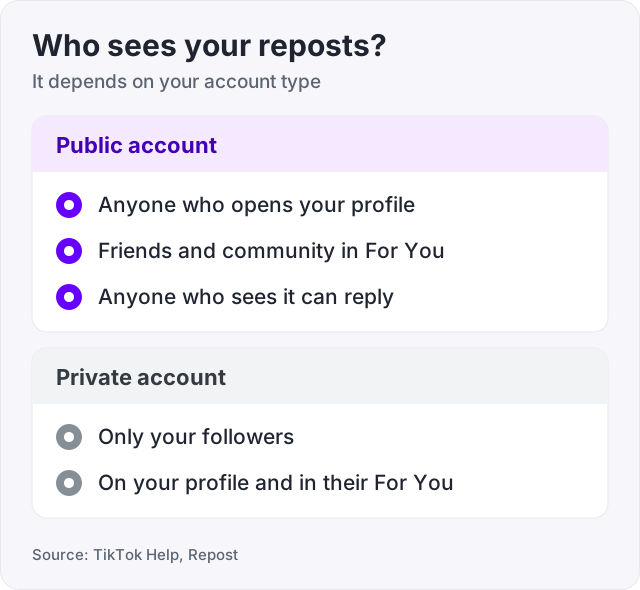
The post stays the creator’s. You do not get a copy, and nothing is uploaded again. Who sees your reposts depends on your account type.
| Your account | Who sees your reposts |
|---|---|
| Public | Anyone who opens your profile, under the Repost tab. Friends and community may see them in For You. |
| Private | Only your followers, on your profile and in their For You feed |
People who can see a repost can also reply to it. TikTok Help says your comment privacy settings do not apply to these replies.
Watch out: if you limit who can comment on your posts, that limit does not cover replies to your reposts. Anyone who can see your repost can reply to it. The steps for removing a reply are further down.
Older guides say reposts never show on your profile. That was true when TikTok first tested the button in January 2022 (TechCrunch). TikTok Help now says your reposts live on your profile under the Repost tab.
Open the post, tap the Share button, then tap Repost. There is no confirm step. TikTok Help says the post is reposted as soon as you tap.
TikTok gives three ways in:
Everything you repost goes to the Repost tab on your profile (TikTok Help). So if you tapped by mistake, that tab is where to find it.
Open the post you reposted, tap the Share button, then tap Delete repost (TikTok Help). That removes the repost, and every reply to it is deleted too.
The label depends on where you start. TikTok Help lists three routes:
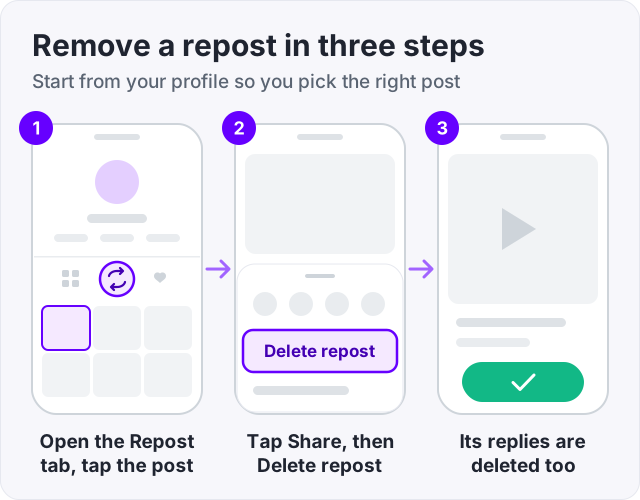
Finding the post is often the hard part. Tap Profile, open the Repost tab, and tap the post. Then use the Share button as above.
TikTok Help only describes removing reposts one at a time. It lists no button to clear them all at once.
To remove one reply and keep the repost, open the post and tap your profile photo at the bottom. Press and hold the reply, then tap Delete (TikTok Help).
Tip: remove a repost from your Repost tab, not from the feed. You know you have the right post, and you can check that it is gone when you go back.
You can see some of the people, not all of them. TikTok Help describes no list of everyone who reposted your video, and no repost count.
Here is what you can see, and where:
Notices are less certain. TikTok Help does not say you get one when someone reposts your video. Its inbox filters cover likes and favorites, comments, Add Yours, and mentions and tags. None of them is for reposts, so do not count on a notice.
| TikTok shows | TikTok does not show |
|---|---|
| Friends who reposted, at the bottom of the post | A full list of everyone who reposted |
| Reposts on each public profile’s Repost tab | A repost count in its help pages |
| A label with the reposter’s photo in For You | Who watched your post because of a repost |
| How many shares your posts got, in TikTok Studio | The names of people who shared it |
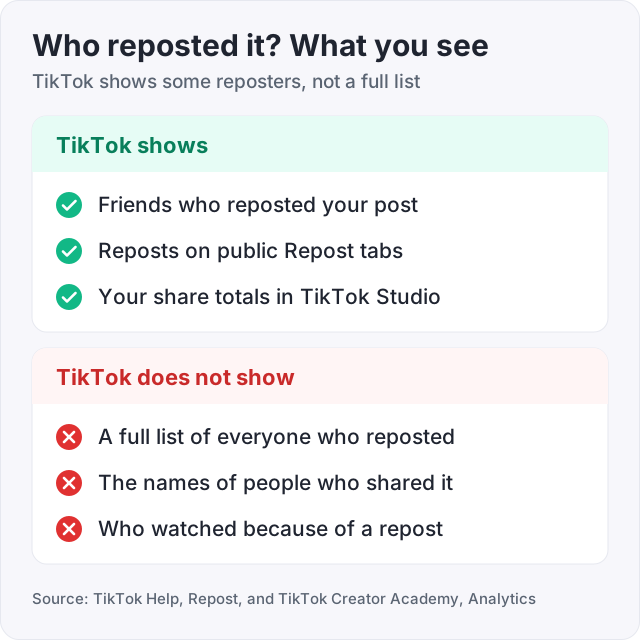
You can see how many times your posts were shared, but not by whom. TikTok Creator Academy says the Overview in TikTok Studio shows post views, profile views, likes, comments and shares. Nothing in TikTok’s help pages names the people behind a share.
A share and a repost are not the same thing. A share sends your post somewhere, such as a chat or a copied link. A repost is one option inside the Share menu that puts the post in friends’ For You feeds. Only reposts leave a visible trace with a name.
To find your share numbers, tap Profile, then the Menu ☰ button, then TikTok Studio. Tap Analytics (TikTok Help). Keep two rules in mind:
Watch out: sites that promise a full list of who reposted or shared your video cannot see more than TikTok shows you. Never give one your TikTok login.
Not directly. TikTok’s Help Center lists no switch that stops others from reposting your posts. The control you do have is who can see each post.
Every post has its own privacy setting (TikTok Help). On a public account you can pick Everyone, Friends or Only you. On a private account you can pick Followers, Friends or Only you. A post that only you can see is a post nobody else can repost.
To change it on a post you already shared, open the post from your profile. Tap the More options button, then Privacy settings, and pick the audience. TikTok says the view count keeps every view to date when you do this.
Two more tools help with one person or with reuse in general:
TikTok Help describes two tools. Make your account private, and only your followers will see your reposts. Or remove the repost.
There is no switch just for reposts in TikTok’s Help Center. Dexerto looked in 2024 and reached the same answer. Making the account private was the only way it found.
To go private, tap Profile, the Menu ☰ button, Settings and privacy, then Privacy. Turn on Private account (TikTok Help). It has a cost. People can no longer Duet, Stitch or download your posts, and you approve every new follower.
A repost does not make a new video. It shows the original post in more For You feeds, with a label (TikTok Help). So any plays it gets are plays of your video.
TikTok does not say how much a repost counts on its own. It does say the For You feed learns from what people like, share, comment on, and watch in full or skip. For most people, those actions count more than other signals, and time spent watching is one of them (TikTok Help). So a repost helps the way any new viewer helps. It puts the post in front of the reposter’s friends, with a name they know on top. What those people do next, such as watching to the end, is what TikTok learns from.
For how plays turn into the number under a video, see what counts as a view on TikTok.
We sell TikTok views, 1,000 for $4.95, and TikTok likes from $2.95 for 100. Here is what they do and do not do. They raise the public count on a post. Do not count on them for reposts, shares or watch time. So they do not push a video into more For You feeds by themselves. TikTok’s rules also say it removes likes and other numbers it finds inflated (TikTok Community Guidelines). We refill any drop for free.
If a wave of reposts sends people to your profile, our free TikTok counter shows the follower count of any public account.
Tap Profile, then open the Repost tab (TikTok Help). Every post you reposted sits there until you remove it.
For other people:
Opening someone’s profile to look can leave a trace. If you both have Profile view history on, they may see that you visited. Our guide on TikTok profile views explains that two-way rule. To tidy up the comments under your own posts, see how to delete comments on TikTok.
Partly. TikTok Help says a repost shows in the For You feed with the profile photo and nickname of the person who reposted it. Friends who reposted a post also show as profile photos at the bottom of it. But TikTok describes no list of everyone who reposted a video, and it does not name the people who shared it by link or message.
Open the post you reposted and tap the Share button, then tap Delete repost. You can also press and hold the video and tap Remove repost, or tap your profile photo at the bottom and tap Remove (TikTok Help). That removes the repost. Any replies people left on your repost are deleted with it.
Yes. Tap Profile and open the Repost tab. TikTok Help says that is where you find everything you have reposted. The tab is also the easiest place to remove an old repost, because you can open the right post from there and use the Share button.
Only by making your account private or by removing the repost. TikTok Help says a private account shows your reposts only to your followers. It lists no switch that hides reposts on a public account. Dexerto reached the same answer in 2024. To go private, tap Profile, the Menu button, Settings and privacy, Privacy, then turn on Private account.
It shares a post you like with your friends and community on their For You feed (TikTok Help). The post looks the same as any other, with a label, your profile photo and your nickname. On a public account it also shows on your profile under the Repost tab. The original creator keeps the post. You do not get a copy.
On a public account your posts can reach people you do not know, and TikTok lists no setting that stops reposts. People repost what they want their friends to see. If you want fewer reposts, limit who can view each post to Friends or Only you in the post privacy settings. A private account limits your posts to followers you approve.
TikTok Help does not say that it does. Its inbox filters cover likes and favorites, comments, Add Yours, and mentions and tags. None of them is for reposts. So do not count on a notice. The surest signs are friends shown at the bottom of your video and posts in other people's Repost tabs.
TikTok Help only describes removing reposts one at a time. It lists no button to clear them all. The quickest way is to work through your Repost tab. Open each post, tap the Share button, then tap Delete repost.
The facts in this guide come from the places below. We check them again each time the guide is updated.
The services and free tools this guide talks about, with the prices you actually pay.
More TikTok guides from the same team.
Followers
TikTok shows who viewed your profile only when Profile view history is on for both of you. Here is how to turn it on and off, and why it may not show up.

Views
TikTok counts a view the moment a video starts playing, loops included. Qualified views, the number that pays, follow a stricter rule. Here are both.

Account help
How to delete comments on TikTok in three taps, clear up to 100 at once, find your old comments, and use filters so the bad ones never show up.