

Likes & engagement
How to hide likes on Instagram, both ways
Hide the like count on your posts and Reels in two taps, and learn what Instagram does and does not let you hide about the posts you liked yourself.
Instagram · Account help
How to archive all Instagram posts in bulk on iPhone, Android and a computer, how to unarchive them, and what archiving does to your likes and reach.

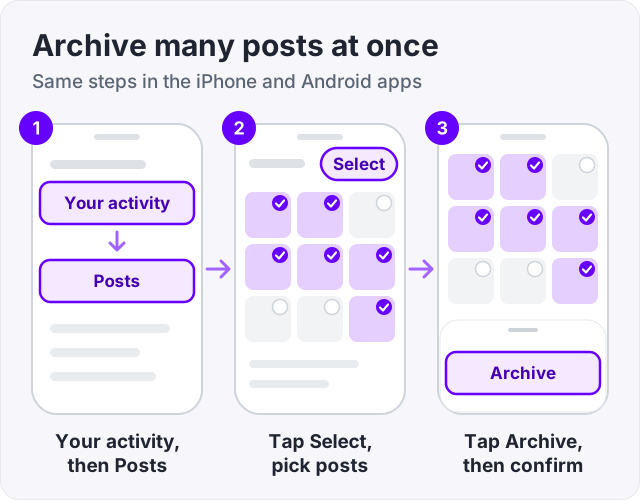
Here is how to archive all Instagram posts in one go. Open your profile, tap the menu, tap Your activity, then tap Posts. Tap Select, tick every post you want to hide, and tap Archive twice (Instagram Help).
The posts leave your profile at once. Nothing is lost. Each post keeps all its likes and comments, and you can put it back whenever you want.
There is one catch. Instagram Help shows no Archive all button, so you tick the posts yourself. This guide shows the fastest way to do that on iPhone, Android and a computer. It also covers how to unarchive, when to delete instead, and what archiving does to your reach.
Yes, in bulk. Instagram added a way to pick many posts and archive them together. It lives in Your activity, not on your profile grid (Instagram Help, “Archive multiple posts at once”).
What you will not find is a single switch that clears the whole grid. You tick each post, then archive the lot with one tap. On a big account that still takes a few minutes, not a few hours. Instagram Help states no cap on how many posts you can tick in one go.
Start by asking what you really want. There may be a quicker path.
| What you want | Best option | Good to know |
|---|---|---|
| Hide many or all posts, and keep the option to bring them back | Archive in bulk | Found under Menu, Your activity, Posts |
| Hide one post | Archive a single post | Found under the three dots on the post |
| Hide every post from strangers, but not from followers | Make the account private | One toggle under Menu, Account privacy |
| Remove posts for good | Delete | You can restore for 30 days, then it is gone |
A private account hides your posts from people who do not follow you, with one toggle (Instagram Help, “Make your Instagram account private”). Your followers still see everything. Business profiles cannot go private. Our guide on how to make your Instagram public explains both sides of that switch and what it costs in growth.
The steps are the same in the iPhone app and the Android app. We checked both tabs on the Instagram Help page, and the text matches word for word.
Two filters on this screen save a lot of scrolling (Instagram Help).
For a big account, work one year at a time. Set the date range, tick every post in it, archive, then move to the next year. You are less likely to miss a post that way.
Tip: before a full clear out, decide which posts stay. An empty grid gives a new visitor nothing to look at. We suggest you keep a few strong posts up, such as three, six or nine, so the rows stay full.
You can mass archive Instagram posts from a browser too. The menu names differ a little from the app (Instagram Help, Computer Help tab).
A mouse and a big screen make this the most comfortable way to clear a large grid.
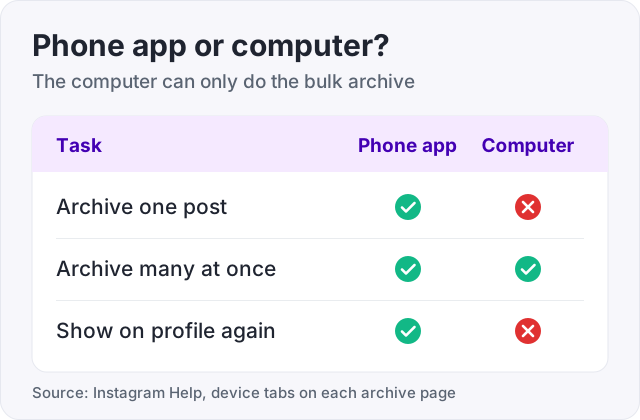
The computer has an odd gap, though. Instagram Help says that archiving a single post is not available on computers. The same goes for showing an archived post on your profile again. So you can hide posts in bulk from a computer, but you need the phone app to bring any of them back.
For one or two posts, skip Your activity. This way is faster (Instagram Help, “Archive a post you’ve shared”).
The post is gone from your profile right away. Instagram Help lists no confirm step here, so check you picked the right one.
Archived posts wait in a private folder called Posts archive. Only you can open it. Here is how to unarchive a post (Instagram Help, “Show an archived post again”).
You can reach the same folder through Your activity. Look below Removed and archived content and tap Archived.
The post returns to its original spot on your profile (Instagram Help). It does not jump to the top of your grid like a new post. A photo from 2022 goes back between the other 2022 photos, with its old likes and comments.
Instagram Help only gives steps for one post at a time here. It lists no bulk Show on profile option. So archiving 300 posts takes minutes, but bringing 300 back means 300 rounds of taps. Think about that before you clear a whole grid for a short break.
Watch out: apps that offer to archive or unarchive everything with one click need your login to work. An app that logs in as you can do anything you can do. We explain how that goes wrong in our guide to the Instagram action blocked message.
Both make a post vanish from your profile. What happens next is very different.
| Archive | Delete | |
|---|---|---|
| Who can see the post | Only you | Nobody |
| Likes and comments | Kept | Gone with the post after 30 days |
| Can you undo it | Yes, at any time | Yes, for 30 days |
| Where it goes | Posts archive | Recently deleted |
| Where it returns | Its original spot | Your profile, if restored in time |
Instagram Help says deleted content moves to Recently deleted and is removed for good 30 days later. Until then you can restore it from Your activity, under Recently deleted. After that, nothing brings it back.
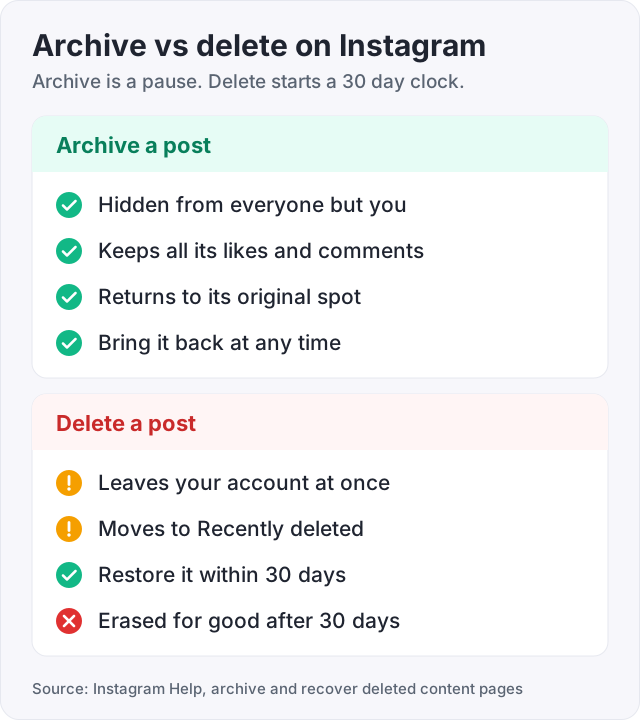
Our rule is simple. If you are not fully sure, archive. It costs nothing and you can still delete the post later. Delete only the posts you never want to see again.
Archiving does not delete likes. Instagram Help says an archived post keeps all its likes and comments. They come back with the post.
Reach is a harder question, and many blogs answer it with a guess. Here is what the sources support.
So the real cost of archiving is simple. You lose whatever that post would have earned while it was hidden. For an old photo that is close to nothing. For a recent post that is still getting likes, wait until it slows down.
If your goal is to hide numbers and not posts, there is a lighter tool. You can hide the like count on Instagram and leave the post where it is.
We sell Instagram likes from $2.95, so here is the honest note for anyone cleaning up a grid.
Likes you bought stay with the post when you archive it, the same as any other like. They come back when the post does. But a like only helps where a visitor can see it. Likes on an archived post are invisible, so never order likes for a post you plan to hide.
Buying likes will not fix a grid you are unhappy with, either. If old posts make your profile look off, archive them. If the posts you keep get few likes, work on the content first. Our guide on how to get more likes on Instagram covers the free ways. After a big clean up, the few posts left carry your whole first impression. That is where a visible number matters most. You can test it on one post with our free Instagram likes trial, which needs no card and no password.
Yes, in bulk, but not with one button. Open your profile, tap the menu, then Your activity, then Posts. Tap Select, tick every post you want to hide, tap Archive, then tap Archive again to confirm (Instagram Help). Instagram Help shows no Archive all or Select all option, so you tick the posts yourself. The date filter makes big accounts easier.
Go to your profile and tap the post you want to hide. Tap Options, the three dots in the top right corner, then select Archive. The post leaves your profile right away, and only you can see it in your Posts archive. This single post option works in the phone app only. Instagram Help says it is not available on computers.
Open your profile, tap the menu, then tap Archive below How you use Instagram. Tap Stories archive at the top and switch to Posts archive. Open the post, tap the three dots, then tap Show on profile. Android asks you to confirm once more. The post goes back to its original spot in your grid (Instagram Help).
No. Instagram Help says that when you archive a post, it keeps all its likes and comments. They are hidden along with the post while it sits in your archive. When you tap Show on profile, the post comes back with the same likes and comments it had before. Only deleting a post puts them at risk.
Instagram has not published any rule that says archiving lowers your reach. Its 2023 post on ranking does not mention archiving at all. What is certain is smaller. An archived post is hidden from everyone, so it earns no new likes, comments or views while it is hidden. Your other posts stay up and keep working as before.
Archive if there is any chance you will want the post again. It keeps the likes and comments, and you can bring it back at any time. Delete only if you want it gone for good. A deleted post sits in Recently deleted for 30 days, and after that Instagram removes it permanently (Instagram Help).
No. Instagram Help says archiving hides a post from your profile so your followers and other people on Instagram cannot see it. Only you can open your Posts archive, from the menu on your own profile. Instagram offers no way for anyone else to browse it. Be wary of any app that claims to show other people's archived posts, above all if it asks for your login.
The facts in this guide come from the places below. We check them again each time the guide is updated.
The services and free tools this guide talks about, with the prices you actually pay.
More Instagram guides from the same team.
Likes & engagement
Hide the like count on your posts and Reels in two taps, and learn what Instagram does and does not let you hide about the posts you liked yourself.

Followers
How to make your Instagram public in the app and on the web, the teen rule that can block the switch, and why every growth method needs a public account.
Likes & engagement
Most posts get likes from 2 to 4 percent of followers. Here is what a good number looks like, what makes Instagram show a post to more people, and what fails.