

Account help
Instagram story not uploading: why it happens and how to fix it
Instagram story not uploading or stuck on posting? Try these fixes in order, with clear iPhone and Android steps, and see what a failed story does to reach.
Instagram · Account help
Instagram keeps crashing or closing when you open it? Here is the order of fixes to try, with iPhone and Android steps, and what a crash means for your account.

If Instagram keeps crashing, close the app fully, restart your phone, then update Instagram. Those are the first steps that Instagram, Apple and Google all list for an app that keeps closing (Instagram Help, Apple Support, Android Help).
If that does not work, there is a clear order for what to try next. It ends with deleting and reinstalling the app, and there is one thing to save before you do that. This guide gives the full order, the exact taps for iPhone and for Android, and how to tell when the problem is not your phone at all.
It also answers the worry behind the search. A crash does not remove your followers, your likes or your posts.
There are only a few real causes, and the official help pages point at each one.
Use this table to match what you see to the fix that fits.
| What happens | What it points to | Try this first |
|---|---|---|
| It crashes for you and for friends at the same time | An outage on Instagram’s side | Wait. No phone fix helps |
| Instagram is crashing when you open it | A stuck app or an old version | Force close, restart, update |
| It crashes on Wi-Fi but not on mobile data, or the other way round | A weak connection | Switch networks |
| It started right after an app update | A bug in that version | Report it and use Instagram.com for now |
| It crashes when you try to post a Story or a Reel | Low space, or a bug in that feature | Free up space, then report it |
| It keeps crashing even after reinstalling | Old phone software, or a bug | Update the phone, then report it |
Work from the top. Each step takes longer or costs more than the one before it, so stop as soon as the app stays open.
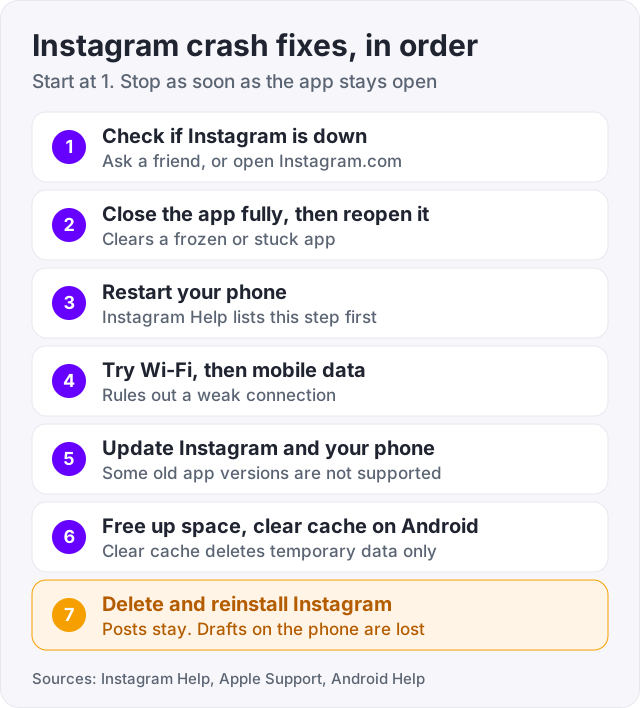
We put closing the app before the restart because it takes five seconds. If you would rather follow Instagram’s page to the letter, restart first.
Do this before you change a single setting. Did Instagram work fine yesterday, and you changed nothing since? Then suspect an outage or a bad update first. If Instagram is down for everyone, nothing on your phone is broken, and nothing on your phone will fix it.
Meta does have a status page, but its own title says it covers “Meta business products”. It is not a status page for the Instagram app. So the three checks above are the best you can do.
If the website fails too and your friends see the same thing, it is an outage. Waiting is the only fix. Do not delete the app during an outage, because you would lose your drafts for nothing.
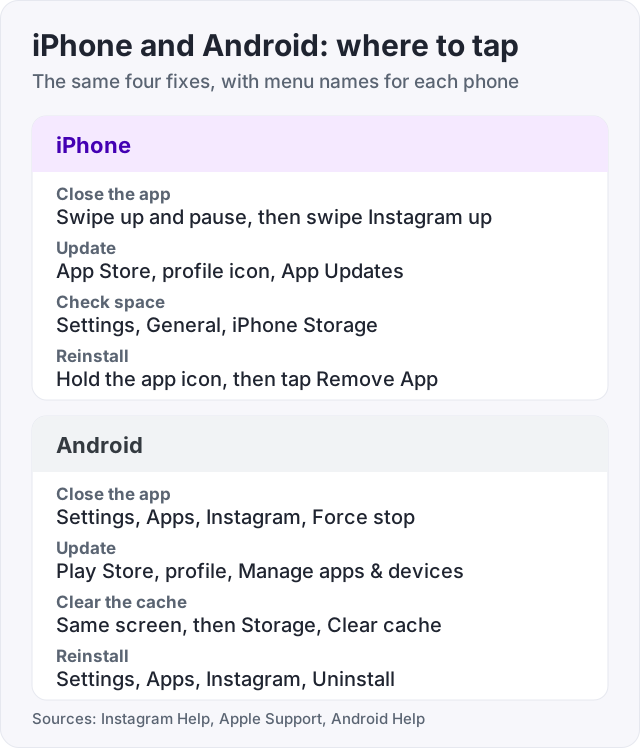
These steps come from Apple Support. Its page covers an app that “stops responding, closes unexpectedly, or won’t open”. The reinstall step is from Instagram Help.
iPhone has no Clear cache button for apps. Apple Support says the phone removes cached and temporary files by itself when it runs low on space. In iPhone Storage, an app gives you two choices. Offload keeps the app’s documents and data. Delete removes the app and its data. So on iPhone, a delete and reinstall is the way to give Instagram a clean start.
Android Help has a page for an app that is “crashing”, “won’t open” or “won’t respond”. It warns that settings can vary by phone, so your menu names may differ a little.
Watch out: Clear cache and Clear storage sit side by side, and they are not the same. Android Help says Clear cache “deletes temporary data”. Clear storage “permanently deletes all app data”. Tap the first one. Treat the second one like an uninstall.
Android users have one more option. Instagram Help points to Instagram Lite, a version of Instagram for Android that uses less data. It can fill in while the main app misbehaves.
People put off the reinstall because they fear losing the account. You will not. Deleting the app is not deleting the account. Instagram Help says it plainly: “Your photos and profile info will be saved by Instagram.” You log in again and it is all there.
Drafts are the exception. Instagram Help says drafts are saved onto your device, and “if you uninstall the app, your drafts will be lost”. That covers post drafts and Reel drafts. You also cannot open a draft from another device, even when you log in to the same account.
Save your drafts before you delete the app. If it stays open long enough, do one of these.
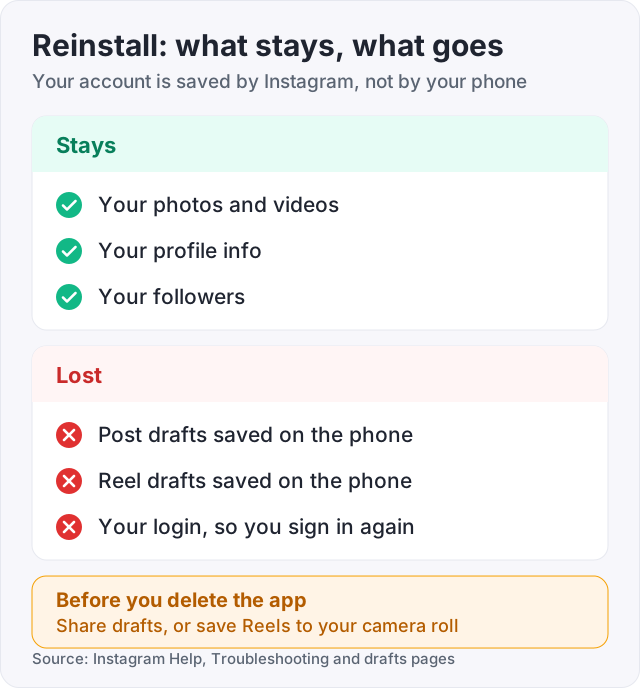
Make sure you know your password before you remove the app. You will need it to log in again.
Sometimes the app opens fine and then closes when you try to post a Story, a Reel or a video. Treat that as its own case.
First, check your space. Video takes a lot of room, and Android Help says clearing space can help your phone run better. Second, update the app, because bug fixes arrive through app updates. Third, log in at Instagram.com in a browser. If the website works, the problem is the app on your phone, not your account.
If the app stays open but the upload never finishes, that is a different problem with different fixes. Our guide on an Instagram Story not uploading covers it.
And if the app works but one action fails with a message, it is not a crash at all. “Try again later” means Instagram paused that action. See our guide on Instagram action blocked.
A crash happens on your phone. Your account does not live on your phone. Your posts and your profile sit on Instagram’s servers, which is why they survive a full delete and reinstall (Instagram Help). Your followers and likes are part of that same account. People who follow you cannot tell that your app closed.
So a crash does not remove followers, and it does not mark your account in any way. If your follower count looks lower after a bad day with the app, the two things are not linked. Our guide on why you are losing followers on Instagram lists the real causes. You can also check your public count without the app. Our Instagram follower counter runs in a browser and needs no login.
The one real cost is the post you could not share. A Reel that never went up gets no views. Once the app is stable, post it. If your views stay low for weeks after that, look at Account Status. Our Instagram shadowban guide shows where to find it.
Here is the honest part about what we sell. We sell Instagram followers, and 100 cost $3.95. Buying them will not fix a crashing app, because the crash is on your phone and followers are on your account. Bought followers cannot cause a crash either. We only use your public username, and nobody logs in to your account. And you do not need to buy anything to “make up” for a crash, because a crash takes nothing away.
Watch out: be careful with any app or site that offers to repair Instagram if you hand over your login. Instagram’s own fixes never ask you to give your password to someone else. Handing it over is how accounts get stolen.
Have you done every step, and it still crashes? Instagram Help says it could be a bug, and asks you to report it.
If the app stays open long enough, do this.
If the app will not open at all, report from a computer. Go to Instagram.com and click More in the bottom left. Click Report a problem. Explain what happened, then click Send report.
Instagram Help asks for detail. Say what phone you use, what you were doing when the app closed, and add a screenshot if you can.
Tip: while you wait for a fix, use Instagram.com. Instagram Help says you can always go there from a mobile browser or a computer, and it does not depend on the app.
The usual reasons are an old app version, a stuck app, a weak connection, a phone that is low on space, or a bug on Instagram's side. Instagram Help says some older versions of the app are no longer supported, so an update is the first thing to check. If the app crashes for your friends at the same time, it is an outage and you can only wait.
A crash on the opening screen often means the app is stuck or out of date. Close Instagram fully, restart your phone, then update the app in the App Store or the Google Play Store. If it still closes at once, delete and reinstall it. Instagram Help says your photos and profile info are saved by Instagram, but drafts on the phone are lost.
Swipe up from the bottom of the screen, pause, and swipe Instagram up to close it. Restart the iPhone. Open the App Store, tap your profile icon, then App Updates, and update Instagram. Check Settings, General, Software Update too. If the crash stays, hold the app icon, tap Remove App, and install Instagram again from the App Store (Apple Support, Instagram Help).
Open Settings, tap Apps, tap Instagram, then open the storage screen and tap Clear cache. Android Help says Clear cache deletes temporary data, and the app may be slow the next time you open it. Do not tap Clear storage unless you mean to. That button permanently deletes all app data, and you will have to log in again.
Ask a friend on a different network if their app opens. Then open Instagram.com in a browser. If both fail, the problem is on Instagram's side. Meta's own status page covers business products only, so most people also check a third-party outage tracker or search "Instagram down" on another social app. During an outage, waiting is the only fix.
No. Deleting the app is not the same as deleting your account. Instagram Help says your photos and profile info will be saved by Instagram. You log in again after the reinstall and everything is there. The one thing you lose is drafts. Instagram Help says drafts are saved onto your device and are lost if you uninstall the app.
If a fresh install still crashes, the cause is likely not the app files on your phone. Check that your phone software is up to date, since Instagram Help asks for the latest version of both. After that it may be a bug or broken feature. Report it to Instagram, and use Instagram.com in a browser until a fixed version comes out.
The facts in this guide come from the places below. We check them again each time the guide is updated.
The services and free tools this guide talks about, with the prices you actually pay.
More Instagram guides from the same team.
Account help
Instagram story not uploading or stuck on posting? Try these fixes in order, with clear iPhone and Android steps, and see what a failed story does to reach.

Followers
The "try again later, we limit how often" message means Instagram thinks your account acted too fast. Here are the causes, how long it lasts, and the fix.

Algorithm & timing
Instagram does not use the word shadowban. What people mean is a post not eligible for recommendation. Here is the built-in check, the causes, and the fix.