

Views
Instagram Story views order: what the viewer list means
Only you can see who viewed your Story, and only for 48 hours. Here is what the viewer list order means, why Instagram will not say, and how highlights work.
Instagram · Account help
Instagram story not uploading or stuck on posting? Try these fixes in order, with clear iPhone and Android steps, and see what a failed story does to reach.

If your Instagram story is not uploading, the cause is nearly always a weak connection, an old app version, or a glitch in the app. Restart your phone, try the story on both Wi-Fi and mobile data, then update Instagram. Those are the first steps Instagram itself gives (Instagram Help, “Troubleshooting”).
An Instagram story not uploading can look three ways, and the next fix depends on which one you see. A circle that never stops spinning is one problem. A “failed to upload” notice is another. A long video that posts in pieces is a third, and that one is not a bug at all.
Below are the fixes in the order to try them, with separate steps for iPhone and Android. We also answer the worry behind the search. Does a failed story hurt your reach? No, and we explain why.
Match what you see on your screen to the row below. Then start with the fix in the last column.
| What you see | Likely cause | Try this first |
|---|---|---|
| Story stuck on “Uploading” or “Posting” | Weak or dropped connection | Switch between Wi-Fi and mobile data |
| “Waiting for connection” | The phone has no working internet | Turn Airplane Mode on, then off |
| A “failed to upload” notice | The upload broke part way | Discard it and make the story again |
| Only part of a long video shows | The video is over 60 seconds | Tap through your story. It was split into clips |
| Story fails only with music | No access to licensed music | Post without the music sticker |
| Every story fails, on any network | App bug or an account limit | Update, reinstall, then check Account Status |
Instagram does not publish a list of story upload errors. What it does publish is a short troubleshooting page, and that page names three things to check. The phone, the connection, and the app (Instagram Help). Almost every fix you will read anywhere is one of those three.
Sometimes the problem is not on your side at all. If Instagram is down, no fix on your phone will help. The quick test is to ask a friend to post a story. The Mac Observer suggests the site Down for Everyone or Just Me for the same check. If others are stuck too, wait it out.
This order follows Instagram’s own troubleshooting page, with the fast checks on top. Stop as soon as the story posts.
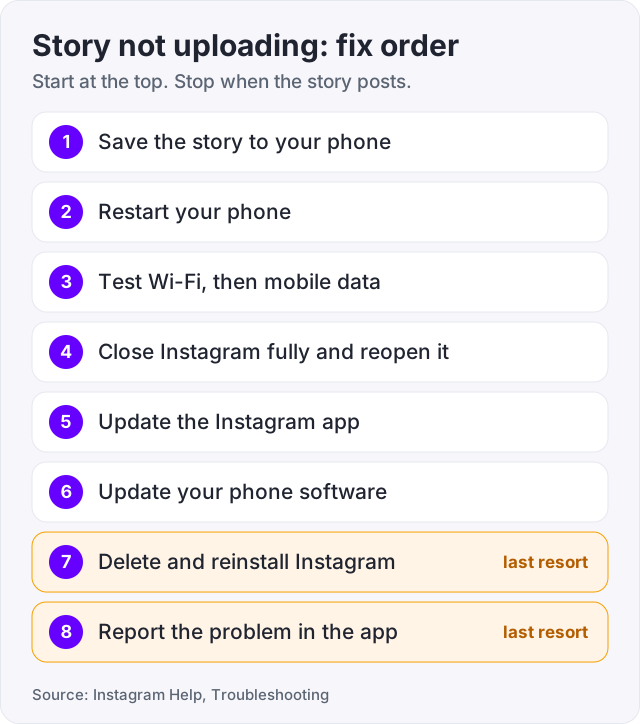
Tip: the network test is the one most people skip. Home Wi-Fi can look fine for scrolling and still be too weak to send a video. One try on mobile data tells you in ten seconds.
A story stuck on posting is a story the app is still trying to send. Often it is a video, because video files are large and need a steady connection.
Do this when the circle will not stop spinning.
If the stuck story will not go away and you cannot delete it, restart your phone and look for the three dots again. If it is still there, delete Instagram and install it again. That gives you a clean copy of the app. Instagram says your photos and profile info are saved on its side (Instagram Help).
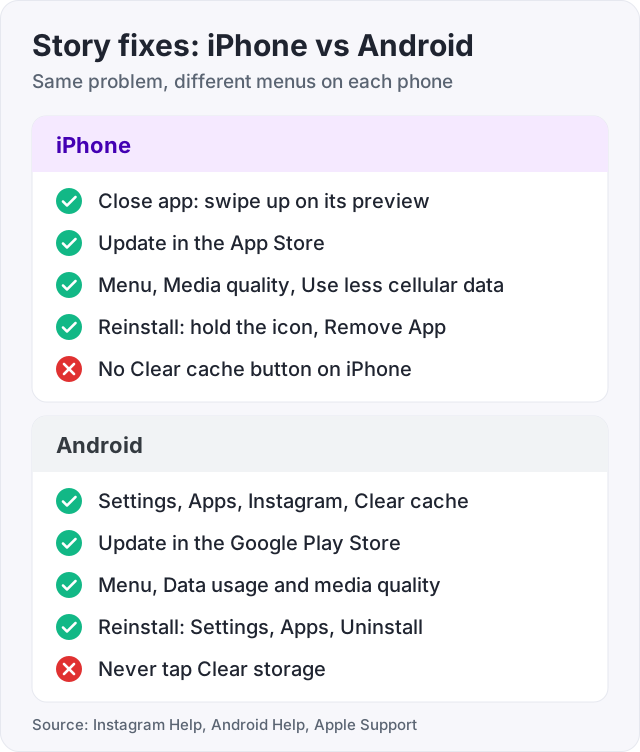
iPhone has no button to clear an app’s cache. That fix is Android only (The Mac Observer). So the iPhone path is short. Close the app, update it, and reinstall if you must.
Close Instagram fully (Apple Support).
On an iPhone with a Home button, double-click the Home button instead. Then swipe up on the preview.
Update Instagram (Instagram Help).
Turn off “Use less cellular data”.
Instagram says this setting only stops videos from preloading on mobile data. It does not mention uploads. Turning it off is still a fair test, since it takes five seconds and you can turn it back on.
Delete and reinstall (Instagram Help).
Android gives you one extra tool, which is the cache. The cache is a pile of temporary files the app keeps to load faster. Fix guides often blame a bad file in that pile for stuck uploads, and clearing it is safe.
Clear the Instagram cache (Android Help).
Menu names vary by phone maker, so yours may differ a little. Google says Clear cache deletes temporary data only. The app may be slow the next time you open it, and that is the whole cost.
Watch out: do not tap Clear storage. Google says that button permanently deletes all app data on the phone. You would be logged out, and any draft you had not shared could be gone.
Update Instagram (Instagram Help).
Turn off Data Saver.
As on iPhone, this is a quick test, not a sure fix.
Uninstall and reinstall (Instagram Help).
Sometimes the app and the network are fine, and the file is what trips the upload.
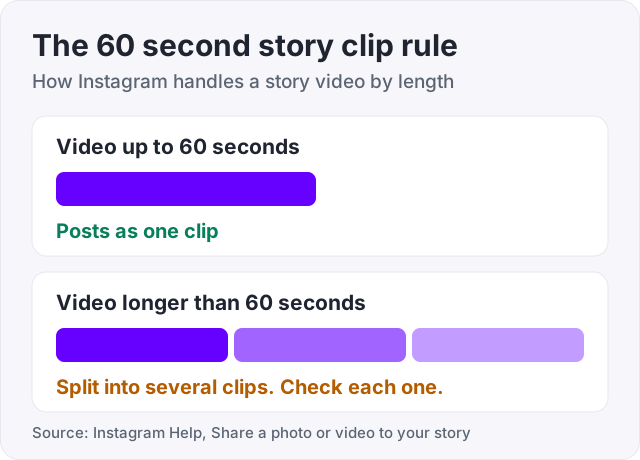
Long videos. Instagram Help says a video up to 60 seconds long appears as one clip in your story. A longer video is broken up into several clips. So “Instagram is not uploading my full video” often means the rest is sitting in the next clip. Tap through your own story to check. On iPhone, a video trimmer at the bottom lets you edit the clips before you share. Instagram says the trimmer is only on iOS for now.
Music. Instagram says certain business accounts, and certain types of posts, have no access to its licensed music library. Licensed music is also not offered in every country or region (Instagram Help). If a story fails only when it has a music sticker, post it without the sticker. Accounts without access can use Meta’s Sound Collection, which Instagram describes as more than 14,000 royalty free songs and sounds.
GIFs and stickers. Instagram says nothing about these. Fix guides such as The Mac Observer report that a story with a GIF sometimes fails, and that the same story posts once the GIF is gone. Treat that as a user report. It is a cheap test all the same. Remove the GIF, post, and see.
This is rare, but check it if every story fails for days on every network.
Instagram can limit what an account is allowed to do after it removes content for breaking its rules. The place to see that is Account Status (Instagram Help).
If a feature is listed there, the page shows what you can do about it, which may be an appeal. If the page is clear, your account is not the cause. Go back to the app and network fixes. Our guide on the Instagram shadowban walks through Account Status in more detail.
A different message, “Try again later”, is its own problem. It means Instagram paused an action because the account moved too fast. We cover that in our guide to the Instagram action blocked message.
Here is the honest picture.
A story that failed to upload was never posted. No follower saw it, so it has no views to lose. Nothing in Instagram Help says a failed upload counts against an account. Post it again when the upload works, and it starts fresh like any other story.
A reinstall does not cost you anything either. Instagram says your photos and profile info are saved on its side. Your followers and posts are tied to your account, not to the app on your phone.
What you can lose is timing. A story lasts 24 hours (Instagram Help). If it goes up three hours late, it may miss the time your followers are online. Our guide on Instagram story views order explains who sees your story and how the viewer list works.
We sell Instagram views for Reels and feed videos, from $2.95. We do not sell story views, because a story is gone in a day. And to be plain about it, no order of any kind fixes an upload problem. Views are added to a video that is already live. They cannot push a stuck story through, clear an account limit, or repair the app. Fix the upload first. You can test views on one Reel with the free Instagram views trial if you want to see how they work.
If you worked through every step and the story still will not upload, report it. Instagram asks you to update the app first, then report (Instagram Help, “Report a technical problem”).
Say what phone you use and what you were doing when it failed. Add a screenshot if you can. Instagram says those details help it find the fault.
Watch out: no real fix asks for your password. Sites and apps that offer to “force upload” a story or “repair” your account want your login. Instagram has no such tool. That is how accounts get stolen.
The usual causes are a weak connection, an old version of the app, or a glitch inside the app. Instagram Help gives the same order of checks. Restart your phone first. Then try the story on Wi-Fi and again on mobile data. Then update Instagram. If none of that works, delete the app and install it again. Your photos and profile are saved by Instagram.
Switch networks first, from Wi-Fi to mobile data or the other way round. If the circle keeps spinning, close Instagram fully and open it again. If a failed upload notice shows, tap the three dots next to it and tap Discard, then make the story again (The Mac Observer). Save the photo or video to your phone before you discard it.
The app is still trying to send the file, so it will not let go of it. Close Instagram fully, then restart your phone and open the app again. Look for the three dots next to the failed upload and tap Discard. If the stuck story is still there, delete Instagram and install it again. That gives you a clean copy of the app, and your account stays as it was.
Instagram says some business accounts and some types of posts have no access to its licensed music library. It also says licensed music is not offered in every country or region. Try posting the same story without the music sticker. If that works, the music was the problem. Instagram points those accounts to its royalty free Sound Collection instead (Instagram Help).
It probably did, in parts. Instagram Help says a video up to 60 seconds long appears as one story clip. A longer video is broken up into several clips. Open your story and tap through it to check that every clip is there. On iPhone you can trim the clips with the video trimmer before you share. Instagram says the trimmer is only on iOS for now.
Clearing the cache on Android deletes temporary data only. Google says the app may be slow the next time you open it, and that is all. Your posts, stories and followers live on Instagram's servers, not in the cache. Do not tap Clear storage by mistake. Google says that one permanently deletes all app data on the phone, which can include unsent drafts.
No. A story that failed to upload was never posted, so no follower saw it and it has no views to lose. Nothing in Instagram Help says a failed upload counts against an account. Account Status is where Instagram lists real limits. If that page is clear, post the story again once the upload works.
The facts in this guide come from the places below. We check them again each time the guide is updated.
The services and free tools this guide talks about, with the prices you actually pay.
More Instagram guides from the same team.
Views
Only you can see who viewed your Story, and only for 48 hours. Here is what the viewer list order means, why Instagram will not say, and how highlights work.

Algorithm & timing
Instagram does not use the word shadowban. What people mean is a post not eligible for recommendation. Here is the built-in check, the causes, and the fix.

Followers
The "try again later, we limit how often" message means Instagram thinks your account acted too fast. Here are the causes, how long it lasts, and the fix.