

Followers
How to make your Instagram public, and why growth needs it
How to make your Instagram public in the app and on the web, the teen rule that can block the switch, and why every growth method needs a public account.
Instagram · Account help
Learn how to find your Instagram URL in the app or on a computer, copy a profile link, post link or Reel link, and share your profile with a QR code.
Your Instagram URL is instagram.com/ followed by your username. To copy it in the app, go to your profile, tap Share profile below your bio, then tap Copy link (Instagram Help).
If you searched “how to find Instagram URL”, you likely want one of three links. It could be your own profile link, a link to one post or Reel, or a link to someone else’s profile. Each one sits in a different spot.
This guide shows all three on iPhone, Android and computer. It also covers the QR code, what happens when you change your username, and who can open your link once you share it.
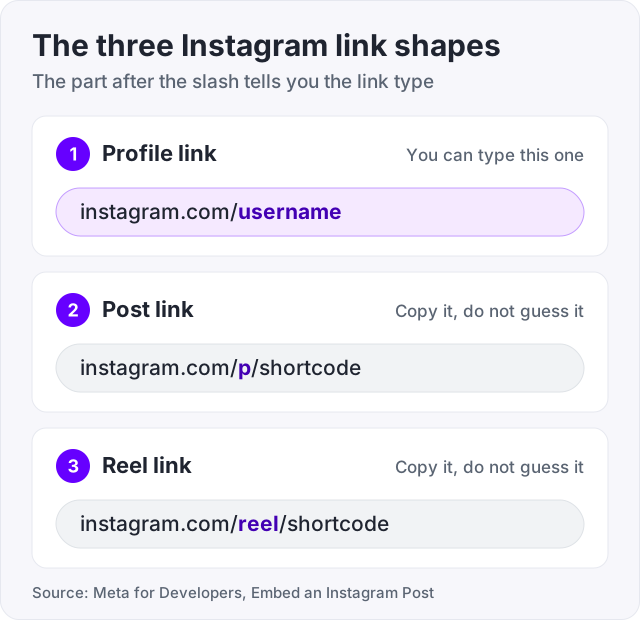
Every Instagram link starts the same way. The part after the slash tells you what kind of link it is. Meta lists the three shapes in its developer guide, “Embed an Instagram Post”.
| Link type | What it looks like | Where it leads |
|---|---|---|
| Profile | instagram.com/username | A profile page |
| Photo or carousel post | instagram.com/p/ and a short code | One post |
| Reel or video | instagram.com/reel/ and a short code | One Reel |
So the question “what is my Instagram URL” has a simple answer. Put your username, with no @ sign, after instagram.com/. If your username is maya.bakes, your URL is instagram.com/maya.bakes. Instagram Help says the same thing. Anyone can see a public profile by visiting instagram.com/[your username] on the web.
A post link is different. Instagram makes up the short code, so you cannot guess it. You have to copy it, and the steps are further down.
Tip: to test your profile link, paste it into a browser’s address bar and press enter. If your profile opens, the link is right. If you get an error page, check the spelling, the dots and the underscores.
The steps are the same on both phones (Instagram Help, “Edit and share your Instagram profile card”).
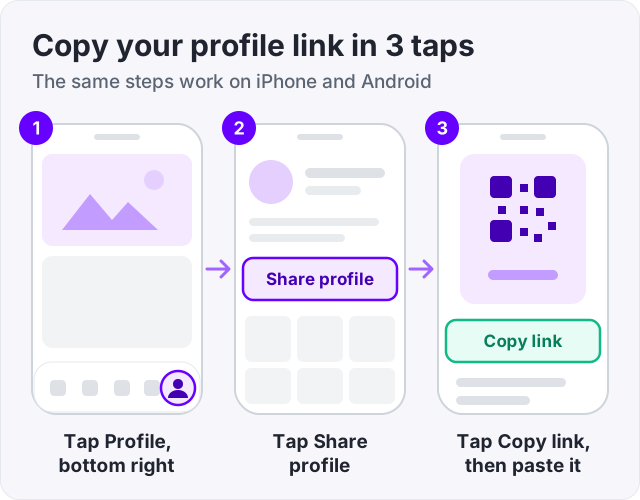
The Share profile screen shows your profile card. One side has your QR code. Swipe the card to see the other side, which shows your name, bio and picture.
Instagram Help notes that profile cards are not available to everyone yet. If your screen looks plainer, you will still see your QR code after you tap Share profile. And the first method always works. Type instagram.com/ and then your username.
Copy link is only one of the buttons below your card. Here is what each one does (Instagram Help).
| Button | What it does | Good for |
|---|---|---|
| Share to (iPhone) or Share (Android) | Opens your phone’s share menu so you can pick an app | A text, a chat or an email |
| Copy link | Puts your Instagram profile link on the clipboard | A website, an email footer, another social profile |
| Download | Saves the card to your phone as a profile card video or a QR code | Flyers, menus, slides, business cards |
| Add to story | Adds the card to your Instagram story | Pointing followers to a second account |
The only real difference between the two phones is that first label. On iPhone it reads “Share to”. On Android it reads “Share”. Everything else matches.
On a computer the browser does the work for you.
There is no Share profile button here. Instagram Help says profile cards only exist in the iPhone and Android apps. You can still get your QR code on a computer. Click Settings at the top of your profile, then click QR code.
The Instagram Help page for this is called “Get a link (URL) to a photo or video”. It covers photos and videos, so the same steps work for a Reel link.
In the app, on iPhone or Android:
On a computer:
For your own posts on a computer there is one more route. Open the post, click Options, then click Share to. Instagram Help lists Copy Link, QR code and email in that menu. So a single post can have a QR code too.
Watch out: a post link from a private account does not open for everyone. Instagram Help says that if the account is private, only followers of that account can see the linked post. Check this before you send a link to a big group.
You can share any profile, even one you do not follow (Instagram Help).
The same screen has other choices. Send puts the profile into an Instagram message. SMS opens a text with the link in it. Download saves that person’s card or QR code.
Your app may look different, because Instagram updates phones in waves. Older versions show three dots in the top right in place of the share icon. Tap the dots and then tap Copy profile URL (Guiding Tech). On a computer, open the profile and copy the address bar.
A QR code is your URL in picture form. People point a phone camera at it and land on your profile. It suits places where nobody can tap a link, like a poster, a shop window or a slide.
To get yours in the app (Instagram Help, “Find and customize the QR code”):
To scan someone else’s code, tap Share profile, then tap the scan icon in the top right. Hold your camera over the code until it is captured (Instagram Help).
One safety note from the same Help page: you cannot log in to Instagram with a QR code. If a site asks you to scan a code to “log in” to Instagram, leave.
Pick the row that matches what you need.
| You want to | Fastest way |
|---|---|
| Text your profile to a friend | Share profile, then Share to or Share |
| Put your link on a website or email footer | Type instagram.com/ and your username |
| Print your profile on a flyer or menu | Share profile, then Download the QR code |
| Send one post or Reel | Send below the post, then Copy Link |
| Get a link while on a laptop | Copy the browser’s address bar |
| Share another person’s account | Share icon in the top right of their profile, then Copy link |
Your URL is built from your username. Change the username and the URL changes with it. The old link no longer has your name in it.
Instagram Help adds two notes on its profile information page. Your followers may be notified when you change your username. And if your account reaches a lot of people, the change may be reviewed before it goes live. If not, it changes right away, as long as the name is free.
We found no Instagram Help page that promises old links will forward to a new name. So do not count on it. After a rename, update the link on your website, in your email footer, on printed material and on your other social profiles. A QR code you printed from the old name needs replacing too. Download a fresh one.
Your URL looks the same whether your account is public or private. What people see when they open it is very different (Instagram Help, “Who can see your Instagram profile and photos on the web”).
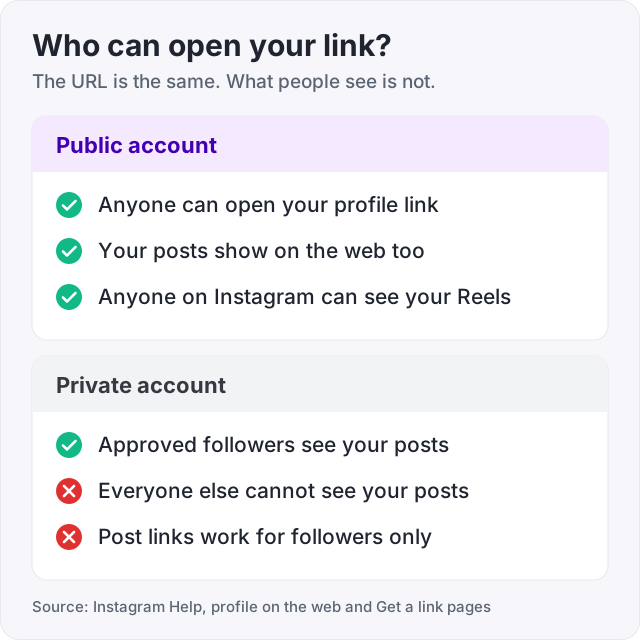
This matters for reach. The whole point of sharing your Instagram profile link is that a new person opens it and likes what they find. On a private account that person hits a locked page and has to send a request first. Many will not. If growth is the goal, read our guide on how to make your Instagram public before you hand the link out.
Copying or printing the link does nothing to your posts by itself. It only brings people to the door. What they find behind it decides the rest.
Your URL also works with the links in your bio. Your URL sends people in, and your bio links send them on to a shop, a booking page or a video channel. Instagram lets you add up to 5 websites to your profile (Instagram Help, “Add a website to your Instagram profile”). If the bio needs work before visitors arrive, our free Instagram bio generator drafts a few versions for you.
Sharing your URL brings visitors. Whether they follow depends on what they see in the first few seconds. They look at your bio, your latest posts and your follower count. Our guide on how to get more followers on Instagram covers the free ways to make that first look count.
This is where bought followers can play a small part. A profile with 40 followers can look unproven to a stranger. At GetLikes, Instagram followers start at $3.95 for 100. The order form asks for your username, the same word that ends your URL. It never asks for a password.
Here is what buying will not fix. It will not make anyone click your link. It does not change your URL or your username. It cannot deliver to a private account. And bought followers do not comment, share or shop. They make the number look more settled, and that is all. The visits still have to come from you sharing the link in the right places.
Tip: put your Instagram URL where people already look for you. Good spots are your email footer, your website header, your other social bios and your packaging. A link nobody sees brings nobody in.
Your Instagram URL is instagram.com/ followed by your username, with no @ sign. If your username is maya.bakes, your URL is instagram.com/maya.bakes. Instagram Help confirms that anyone can view a public profile by visiting instagram.com/[your username] on the web. You can type the link by hand, or copy it from the Share profile screen in the app.
Open the Instagram app and tap Profile or your profile picture in the bottom right. Tap Share profile below your bio, then tap Copy link. The link is now on your clipboard, so you can paste it into a text, an email or a website. The steps are the same on iPhone and Android (Instagram Help).
Go to instagram.com in a browser and log in. Click your profile picture on the left to open your profile. The address bar at the top now shows instagram.com/ and your username. Click the address bar, copy the text, and paste it where you need it. There is no Share profile card on computers, because Instagram Help says profile cards are app only.
In the app, tap Send below the post or Reel, then tap Copy Link at the bottom. On a computer, click Options next to the post and click Copy link. Both steps come from the Instagram Help page "Get a link (URL) to a photo or video". If the account is private, only its followers can open the link.
Go to your profile and tap Share profile below your bio. Your QR code is on that screen. Tap Download to save it to your phone, then print it or add it to a slide. On a computer, click Settings at the top of your profile and click QR code. Anyone who scans it lands on your profile (Instagram Help).
Yes. The URL is built from your username, so a new username gives you a new URL. Update the link on your website, your email footer and your other social profiles. Instagram Help adds two notes. Your followers may be told about the change, and accounts that reach a lot of people may have the change reviewed first.
The link opens, but most people will not see your posts. Instagram Help says a private profile and its posts are visible only to logged in people you approved as followers. Links to single posts work the same way. If the account that posted is private, only followers of that account can see what the link leads to.
The facts in this guide come from the places below. We check them again each time the guide is updated.
The services and free tools this guide talks about, with the prices you actually pay.
More Instagram guides from the same team.
Followers
How to make your Instagram public in the app and on the web, the teen rule that can block the switch, and why every growth method needs a public account.
Followers
Instagram followers come from Reels, a searchable name field and a steady rhythm. Here is what moves the number, the steps in order, and what does not work.
Followers
A public Instagram account cannot hide its followers list. Here are the four things you can actually do, with steps, and what each one costs you in growth.